How to Take a Professional Headshot at Home in 2026
Step-by-step guide to DIY headshots with phone or camera — lighting, backgrounds, framing, and when AI beats the DIY effort.
By SnapProHead Team
You do not need a photography studio to get a professional-looking headshot. With a modern smartphone, a window, and about 45 minutes, you can shoot a LinkedIn-worthy portrait at home. Hundreds of thousands of professionals are doing it — and the results can be surprisingly good.
But DIY has real limits. Lighting that looked fine on your phone screen can look flat on a monitor. Distracting backgrounds sneak into the frame. And the time you spend shooting, culling, and editing is time you could spend on actual paid work.
This guide covers everything: what equipment you need (surprisingly little), how to set up lighting and backgrounds, framing and posing basics, editing tips, and — honestly — when the DIY effort stops being worth it and an AI headshot generator makes more sense.
For the quick version: if you need one LinkedIn photo and have decent natural light, try the window-light method below. If you need variety, consistency, or just want to skip the 2-hour setup-and-shoot process, SnapProHead starts at $29 for 40+ professional headshots. Browse real examples to see the difference.
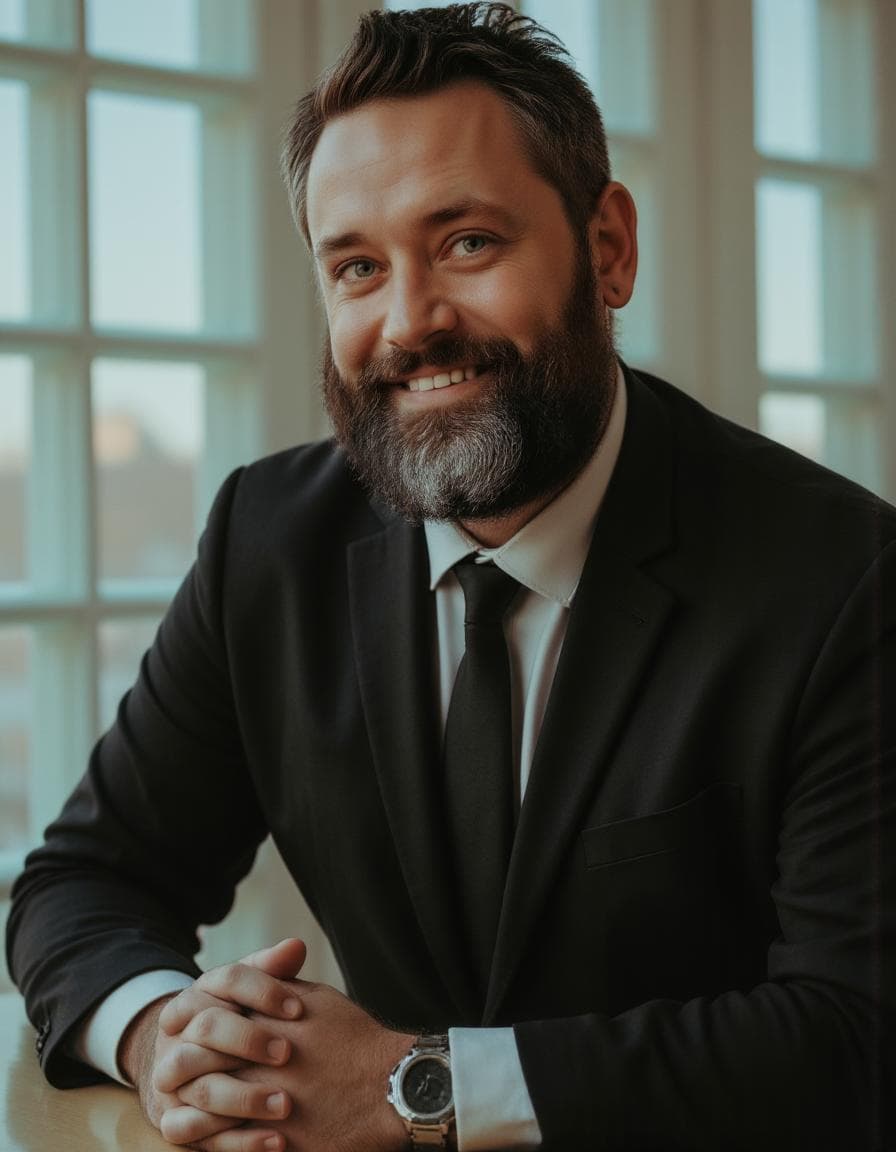
Phone vs camera: what you actually need
The single most common question about DIY headshots: can I use my phone, or do I need a real camera?
Using your smartphone
Modern flagship phones — iPhone 14/15/16, Samsung Galaxy S23/S24, Google Pixel 7/8/9 — have cameras capable of excellent headshot-quality photos if you control the light. The key is using the rear camera, not the front-facing selfie camera.
| Camera | Resolution | Portrait mode | Best use |
|---|---|---|---|
| Rear (main) | 12MP–48MP | Available, better depth mapping | Primary headshot camera |
| Front (selfie) | 8MP–12MP | Available, less reliable | Avoid for headshots |
The rear camera has a larger sensor, better low-light performance, and more accurate edge detection in portrait mode. If your phone has a telephoto lens (2× or 3×), use it — the compression is more flattering for faces than the wide-angle main lens.
Pro tip: Do not use digital zoom. Walk closer instead. Digital zoom degrades image quality and introduces noise that no editing app can fully fix.
Using a dedicated camera
If you own a DSLR or mirrorless camera, use it. A 50mm or 85mm lens at f/2.8 to f/4 will produce the most flattering headshot perspective. Avoid shooting wider than 35mm — wide-angle distortion will make your face look unnatural.
| Category | Recommendation |
|---|---|
| Lens | 50mm or 85mm prime, or 24–70mm zoom at 50mm+ |
| Aperture | f/2.8–f/4 (blur background slightly, keep face sharp) |
| ISO | As low as possible (100–400), compensate with light |
| Shutter speed | 1/125 or faster if hand-holding |
If you do not already own a DSLR or mirrorless camera, do not buy one for a DIY headshot. A modern smartphone with good light will get you 90% of the way there — and if you want the last 10%, AI headshots are cheaper than camera gear.
Bottom line: your phone's rear camera is enough. Spend your effort on light, not on equipment.
The window light technique (your best free tool)
Lighting is what separates a professional headshot from a snapshot. And the best light source costs nothing: a large window.
How to set up window light
-
Find the biggest window in your home — living room, bedroom, or office with an unobstructed window. North-facing windows produce soft, consistent light all day. East or west windows work but light changes throughout the day.
-
Shoot during the right time — mid-morning or late afternoon. Avoid noon when sunlight streams directly in, creating harsh shadows. Overcast days are actually ideal — clouds act as a giant softbox.
-
Position yourself at a 45-degree angle to the window — not directly facing it (flat light, squinting risk), not at 90 degrees (half your face in shadow). A 45-degree angle creates gentle modeling on one side of your face, adding dimension.
-
Use a reflector on the shadow side — a white foam board, a piece of white poster paper, or even a white bedsheet held by a roommate. Place it opposite the window to bounce light back onto the shadow side of your face. This softens contrast without eliminating the dimensional effect.
Window light setup diagram (bird's-eye view):

        Window
      [==========]
          ↑
          |  (natural light)
          |
    You → ☺  ← 45° angle to window
          |
          |  (bounced fill)
          ↓
      [  Foam  ]
      [  Board  ]
What not to do
- Do not use overhead ceiling lights — they cast unflattering shadows under your eyes and chin. Turn them off.
- Do not mix window light with room lamps — mixed color temperatures (daylight + warm bulb) make skin tones look sickly.
- Do not shoot with the window behind you — the camera will expose for the bright background, turning you into a silhouette.
If you have no large window or live in a basement apartment, skip to the editing apps section or consider the AI alternative — inconsistent lighting is the #1 reason DIY headshots fail.
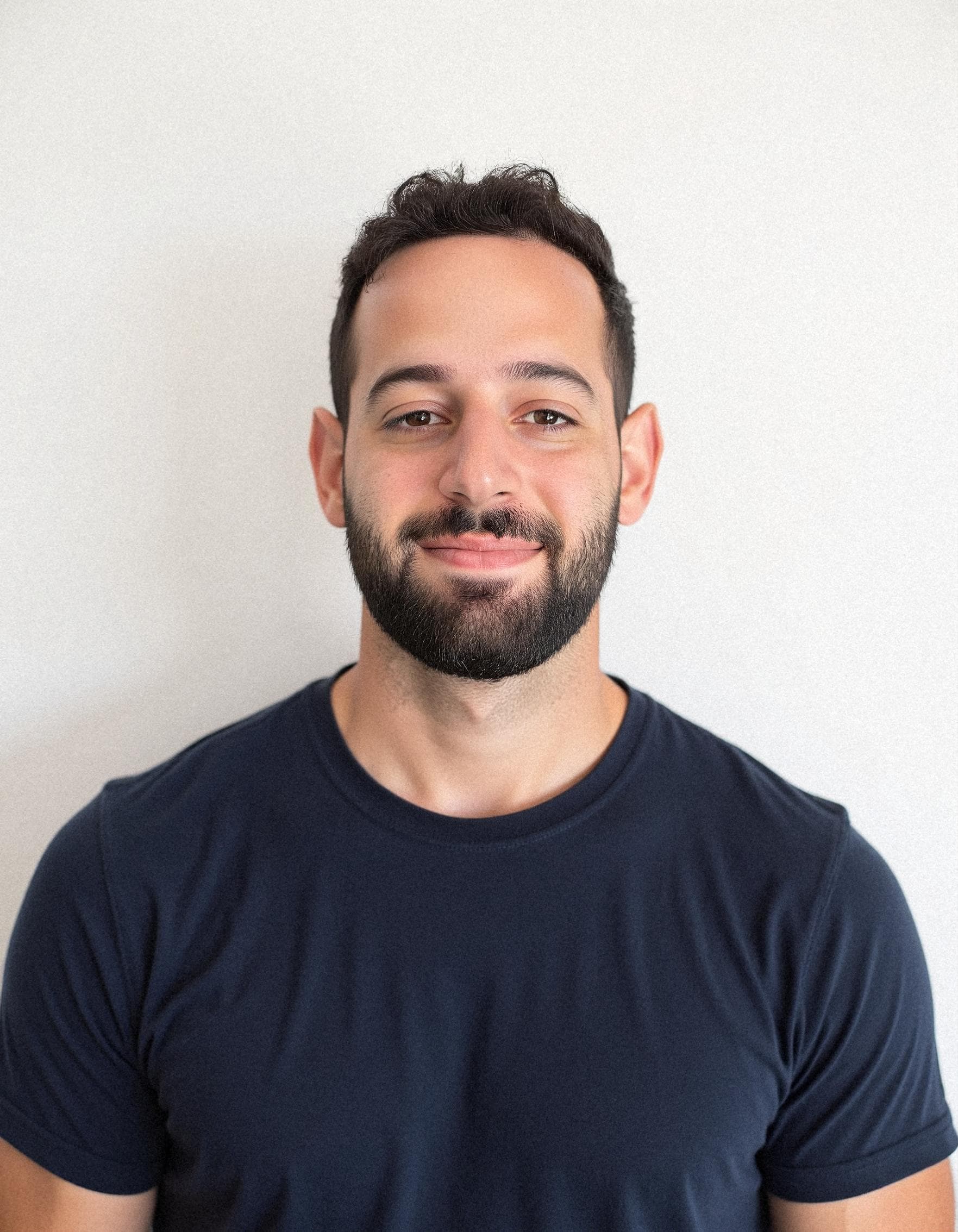
Background choices: plain wall, fabric, and what to avoid
Your background should disappear — not compete for attention.
Best backgrounds
| Option | Cost | Difficulty | Look |
|---|---|---|---|
| Plain painted wall (white, gray, beige) | $0 | Easy | Clean, professional |
| Fabric backdrop on a rod | $15–$30 | Medium | Formal studio look |
| Blurred background via portrait mode | $0 | Easy | Natural, depth |
| Seamless paper roll | $25–$50 | Medium-Hard | Studio-grade |
Plain wall: The cheapest and easiest option. White, light gray, or warm beige walls work best. Stand 3–4 feet away from the wall to avoid casting a hard shadow behind you. If the wall has texture, your phone's portrait mode will blur it naturally.
Fabric backdrop: A dark gray or navy bedsheet, a photographer's muslin backdrop ($20 on Amazon), or even a plain curtain can work. Hang it behind you with enough distance so wrinkles are not visible. Use clamps or tape — not your hands.
Seamless paper: The most professional-looking DIY option. A roll of 53-inch wide seamless paper (Thunder Gray or Studio Gray) costs around $25–$50. Tape it to the wall and let it curve down to the floor — the curve eliminates the horizon line, creating the look of an infinity background. This is what many professional studios use.
Backgrounds to avoid
- Busy rooms — bookshelves, visible furniture, open doors. Everything in frame competes with your face.
- Outdoor with nothing behind you — sunlight dappling through trees creates distracting patches on your face. If you shoot outside, find open shade against a plain wall.
- Virtual backgrounds — Zoom and Teams virtual backgrounds have obvious edge artifacts. Never use them for a headshot.
- White background without room to separate — if you stand right against a white wall, you cast a sharp shadow that looks amateur. Give yourself 3–4 feet of distance.
Framing: chest-up and the rule of thirds
The chest-up crop
The most versatile headshot framing is chest-up — the bottom of the frame hits mid-chest, just below the collarbone. This crop works on LinkedIn (which displays images as 1:1 squares), company websites (varied aspect ratios), and email signatures (small display sizes).
A head-and-shoulders crop (chin to just above the head) is also common and works well for LinkedIn. A waist-up crop gives you more framing flexibility during editing.
Camera height and angle
- Position the camera at eye level or slightly above. Shooting from below emphasizes double chins and nostrils — never do it.
- Tilt your chin slightly forward and down — it defines the jawline.
- Turn your body 10–20 degrees away from the camera, then turn your head back toward the lens. A straight-on shoulders-and-face shot looks like a mugshot.
The rule of thirds
Mentally divide your frame into a 3×3 grid. Position your eyes along the top horizontal line. Your head should fill about 60–70% of the frame height — if your head is tiny in a sea of wall, the photo will not work at thumbnail sizes.
| Framing error | Fix |
|---|---|
| Head too small | Move closer; use 2× telephoto |
| Head too large | Step back; switch to main lens |
| Eyes too low | Raise the camera |
| Face dead-center | Offset slightly; turn body |
| Crooked horizon | Check wall line; straighten in editing |
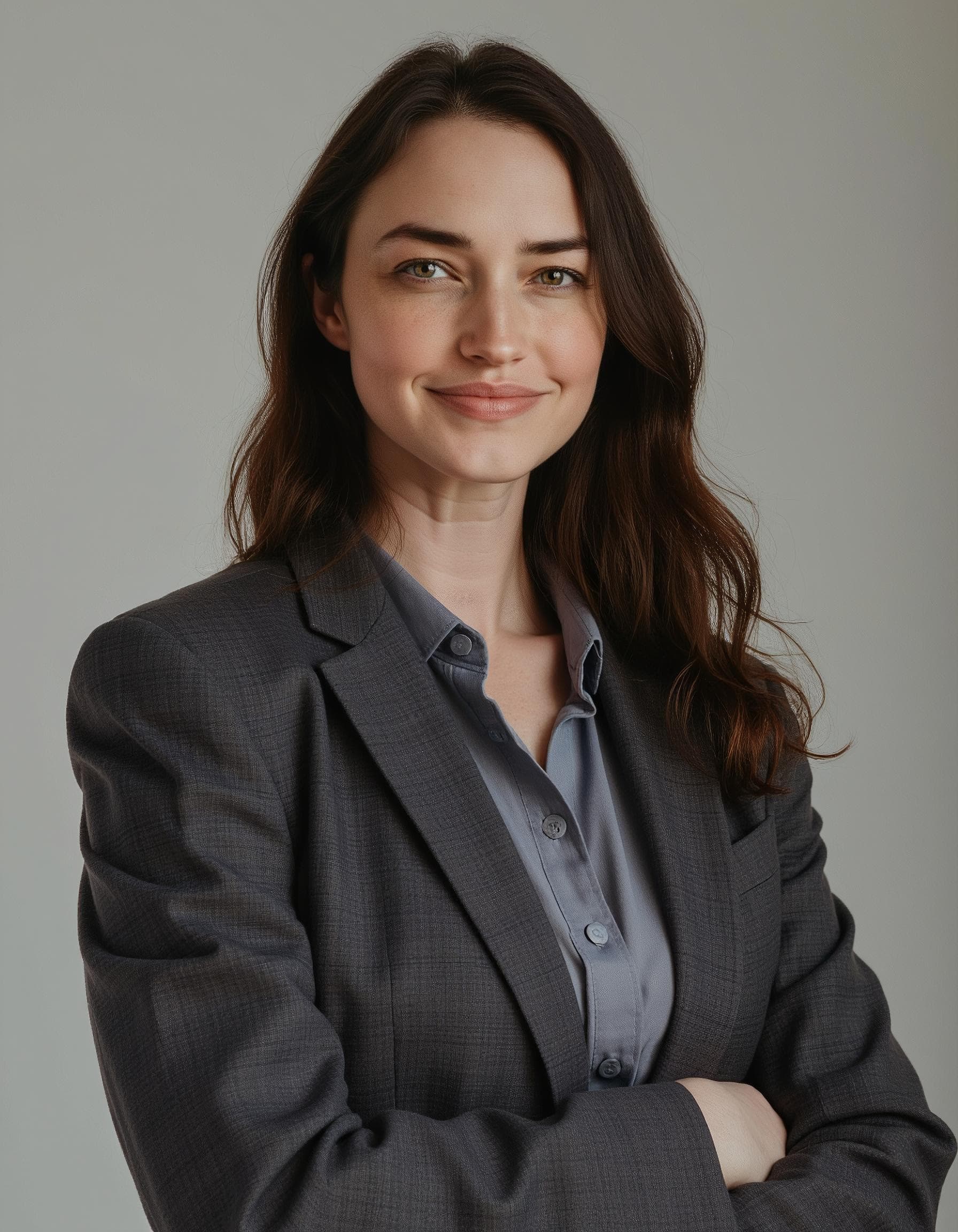
Self-timer vs helper: which works better?
Using a helper (recommended)
If you have a roommate, partner, or friend willing to hold the phone for 10 minutes, take the help. A human behind the camera can:
- Adjust your position ("move left one inch, now chin down slightly")
- Check the screen for distracting elements you cannot see
- Tell you when your expression looks natural vs forced
- Take multiple shots quickly without the self-timer dance
Give your helper clear instructions: "Stand here, hold the phone at my eye level, and take 20 shots. Let me know if my collar is crooked or my hair is doing something weird."
Using a self-timer
If you are alone, a tripod plus self-timer works — it is just slower.
Equipment: A phone tripod costs $15–$25. A Joby GorillaPod or similar small tripod can be set on a table, shelf, or stack of books. Make sure the phone is at eye level — not looking up at you from a coffee table.
Timer settings: Use the 10-second timer, not 3 seconds. Three seconds is barely enough time to drop your hand and compose your expression. Ten seconds gives you time to find your mark, check your posture, and settle your face.
Remote shutter options:
- Apple Watch camera remote (very useful if you own one)
- Bluetooth remote shutter ($10, works with any phone)
- Volume-button-as-shutter trick (set phone on tripod, use wired earbud volume button as a remote trigger)
How many shots to take
Take at least 30–50 photos. Professional photographers often shoot 200–300 frames per look to capture that one natural expression between the posed ones. You are looking for one good photo — giving yourself options is free.
Between bursts of 5–10 shots, check the screen for:
- Eyes in focus (zoom in to confirm)
- No weird shadows
- Clothing sitting correctly
- Natural-looking expression
Clothing tips for DIY headshots
What you wear matters more in a DIY headshot than in a studio — you have less control over lighting to compensate for distracting clothing.
What works
- Solid, neutral colors — navy, charcoal, medium blue, burgundy, forest green. These colors photograph well and do not distract from your face.
- Simple necklines — crew neck, v-neck, collared shirt, blazer. Avoid complicated ruffles, patterns, or logos.
- Layers add depth — a blazer over a solid shirt photographs well even on a phone camera.
- Industry-appropriate — tech (business casual), finance (suit and tie), creative (smart casual). Match your industry's expectations.
What to avoid
- White shirts — they blow out highlights and distract from the face. Light blue is better.
- Bold patterns — stripes, plaids, and busy prints create visual noise and can produce moiré artifacts on digital sensors.
- Logos and text — they draw the eye away from your face.
- Tank tops or spaghetti straps — too casual, and they reveal skin that can catch light unevenly.
- Jewelry that catches bright reflections — dangly earrings, reflective pendants.
A note on hair and grooming
DIY means you handle your own grooming. The camera sees more than the mirror: flyaway hairs, uneven stubble, dry lips. Run a lint roller over your shirt before shooting. If you wear makeup, apply it slightly heavier than everyday — cameras wash out about 20% of color and contrast.
Editing apps to polish your photo
Once you have a raw shot you like, a few minutes of basic editing makes a big difference. You do not need Photoshop. Phone apps are good enough.
Free apps
| App | Platform | Best for |
|---|---|---|
| Snapseed (Google) | iOS, Android | Overall editing, selective brightness, healing brush |
| Adobe Lightroom Mobile (free tier) | iOS, Android | Color and exposure adjustments, presets |
| VSCO | iOS, Android | Quick filters, skin tone adjustments |
| Built-in Photos app | iOS, Android | Cropping, basic brightness/contrast |
Paid apps
| App | Platform | Cost | Best for |
|---|---|---|---|
| Facetune | iOS, Android | ~$5/mo | Skin smoothing, teeth whitening (use sparingly) |
| Adobe Lightroom Premium | iOS, Android | ~$5/mo | Healing brush, selective edits, RAW support |
| Pixelmator | iOS | ~$5 one-time | Retouching, background replacement |
The editing workflow (5 minutes or less)
- Crop first — square (1:1) for LinkedIn, 4:5 for Instagram, or keep it 3:2 with room to crop later. Crop to chest-up.
- Adjust exposure — increase brightness until the face looks naturally lit. Do not blow out highlights on the forehead or nose.
- Warm the white balance slightly — a touch of warmth (+100–300K) makes skin look healthier on screens.
- Reduce contrast slightly — phone photos often have too much contrast. Reduce by 5–10%.
- Spot-remove distractions — use the healing brush to remove stray hairs, skin blemishes, or background spots.
- Do not over-smooth skin — the "plastic face" look signals an amateur edit. If you use skin smoothing, keep it under 20% opacity.
- Sharpen for export — add a small amount of sharpening (20–30%) before saving. LinkedIn compresses images; a slightly sharper export survives that compression better.
Export at the highest quality the app allows. LinkedIn recommends images at least 400×400 pixels and up to 8MB.
Common DIY headshot mistakes and how to fix them
| Mistake | Why it happens | Fix |
|---|---|---|
| Face looks flat | No directional light | Use 45° window light, add reflector |
| Dark circles under eyes | Overhead lighting | Turn off ceiling lights, use window light |
| Yellow/orange skin | Mixed light sources | One light source only |
| Blurry eyes | Camera focused on background | Tap face on screen to set focus point |
| Grainy/noisy photo | Low light, high ISO | Add more light, do not digitally brighten |
| Crooked photo | Tripod not level | Check grid lines, level in editing |
| Distracting background | Not checking behind you | Plain wall, 3+ feet of separation |
| Forced smile | Holding expression too long | Relax between bursts, think of something funny |
When DIY isn't enough: the AI alternative
DIY headshots can look good. But good takes work — and there are real limitations you should be honest about:
-
Limited variety — you get one outfit, one background, one expression. If you need different looks for LinkedIn, company website, and conference bio, that means three separate shoots.
-
Skill ceiling — you are not a photographer. You may not know why a shot looks "off," and you lack the editing skills to fix it.
-
Equipment gaps — if your home has no good window light, no plain walls, and no one to hold the phone, the DIY path is an uphill battle.
-
Time cost — setup, shooting, culling, and editing run 1–3 hours for one photo. If you bill by the hour, that is real money.
-
No do-overs without a reshoot — if you finish editing and realize your smile looks forced, you have to set everything up again.
This is where AI headshots change the equation. SnapProHead lets you upload 10–15 selfies taken on your phone (no studio setup needed), and in about 25 minutes, you get 40 to 100 studio-quality headshots in different outfits, backgrounds, and styles. The AI handles lighting, composition, and post-processing — so you get professional results without any of the DIY friction.
DIY time cost vs AI: a real comparison
| DIY at home | AI headshots (SnapProHead) | |
|---|---|---|
| Setup time | ~30 minutes (tripod, backdrop, lighting) | ~5 minutes (upload selfies from phone) |
| Shooting time | ~45 minutes (posing, adjusting, checking) | 0 minutes |
| Culling time | ~20 minutes (going through 100+ shots) | 0 minutes |
| Editing time | ~30 minutes (exposure, crop, retouch) | 0 minutes |
| Total time investment | ~2 hours | ~30 minutes (upload + review) |
| Number of usable photos | 1–3 | 40+ |
| Variety (outfits/backgrounds) | 1 | 10–30 different looks |
| Cost | $0–$50 (equipment) | $29–$59 |
| Skill required | Moderate | None |
If your hourly rate is $50/hour, the 2 hours you spend on DIY cost $100 in opportunity cost — plus any equipment you buy. A $29 AI headshot batch delivers more variety in less time with zero skill required.
For professionals who need one specific look — a minimalist headshot against a specific wall color, for example — DIY with good light can work. For everyone else, AI is the more efficient path to a better result.

Frequently asked questions
Can I take a professional headshot with my phone?
Yes. Modern smartphone rear cameras are capable of excellent headshot-quality photos if you control the light. Use natural window light, a plain background, and shoot with the rear camera (not the front selfie camera). Avoid digital zoom. However, you only get one look per shoot — if you need variety, consider an AI headshot tool that generates multiple styles from simple selfies.
What is the best background for a DIY headshot?
A plain, light-colored wall (white, gray, or beige) is the simplest and most effective DIY background. Stand 3–4 feet away from the wall to avoid casting shadows. A fabric backdrop ($15–$30) or seamless paper ($25–$50) offers a more polished studio look. Avoid busy rooms, outdoor settings with complex backgrounds, and virtual backgrounds.
Do I need a ring light for home headshots?
No. Natural window light is almost always better than a ring light. Ring lights create a characteristic circular catchlight in the eyes and can produce a flat, shadowless look. Window light is softer, more natural, and free. If you shoot at night or in a windowless space, a ring light or softbox LED ($30–$60) is your next best option.
How many photos should I take for one good DIY headshot?
Take at least 30–50 photos per shoot. Professional photographers shoot hundreds per session to capture a single natural expression. Between bursts, check for sharp focus on the eyes, clothing positioning, and expression. Having options is free — having to reshoot because you only took five photos is frustrating.
Should I smile in my professional headshot?
A natural, slight smile almost always works better than a serious expression for LinkedIn and professional directories. Think "approachable and competent" — your expression when meeting a new colleague, not your expression when reading a contract. The key word is natural — if you have to hold a smile for the self-timer, it will look forced. Try thinking of something genuinely funny between bursts.
How do I edit my DIY headshot without Photoshop?
Snapseed (free, iOS/Android), Adobe Lightroom Mobile (free tier), or your phone's built-in Photos app are more than sufficient. Crop first (square 1:1 for LinkedIn), adjust exposure, warm white balance slightly, and use the healing brush for spot removal. Avoid heavy skin smoothing — the goal is polished, not plastic.
When should I skip DIY and use AI instead?
Skip DIY if you need any of the following: multiple outfit and background options, consistent results without photography skill, a headshot within minutes rather than hours, or professional variety that would require multiple DIY sessions. SnapProHead starts at $29 for 40+ headshots — roughly the cost of a tripod and backdrop, with none of the effort.
What resolution do I need for a LinkedIn headshot?
LinkedIn recommends a minimum of 400×400 pixels, with a maximum file size of 8MB. A standard 1024×1024 headshot looks sharp at LinkedIn's display sizes and loads quickly. Your smartphone rear camera at full resolution far exceeds these requirements.
Should I use portrait mode on my phone?
Portrait mode can produce a nice background blur that mimics a wide-aperture lens, but it sometimes creates unnatural edge artifacts around hair. Test it against a standard photo mode shot in the same lighting. If the edge detection struggles with your hair, stick to standard mode and stand far enough from the background that it is naturally out of focus.
Can I use a DIY headshot for my company website?
Yes, if it meets the quality bar. Compare your DIY shot against your colleagues' photos. If yours looks noticeably different — different lighting style, lower resolution, inconsistent background — it will stand out. Many companies now use AI headshots for teams to ensure consistency across every employee photo.
Bottom line
Taking a professional headshot at home is entirely possible in 2026. With a modern phone, a large window, a plain wall, and about 2 hours, you can produce a LinkedIn-worthy portrait that costs nothing beyond your time.
But DIY has a ceiling. You get one look per session. Consistency across multiple attempts is hard. And if your home lacks good light or a clean background, the experience is frustrating before you even reach the editing stage.
The smarter play for most professionals: try the window-light method if you genuinely enjoy the process and only need one photo. If you need variety, consistency, or just want to skip the 2-hour effort, try SnapProHead — 40+ professional headshots in about 25 minutes, starting at $29. Upload a few selfies, and let AI handle the lighting, composition, and variety.
For more guidance on professional headshots, see our LinkedIn headshot tips, AI headshot generator comparison, and professional headshot page.
Related: Best AI headshot generators compared · Professional headshot cost comparison · LinkedIn profile picture guide · Complete guide to AI headshots · SnapProHead pricing
Last updated: June 2026. This guide reflects current smartphone camera capabilities, editing tools, and AI headshot technology as of mid-2026.
Read next
AI Headshots for Sales Professionals: Look Credible, Close More Deals
Why sales professionals need polished headshots for LinkedIn, email signatures, and company pages. AI headshots deliver 40+ studio-quality options from $29 in ~25 minutes.
Read article
AI Headshots for Teams: Complete Guide for 2026
How to roll out AI headshots for teams of 5-500. Compare HeadshotPro, SnapProHead, and BetterPic for team features, pricing, and logistics.
Read article